
Finance managers and controllers usually answer two recurring questions by running ad-hoc exports and chasing colleagues by email: how much are we spending, where, and how does it compare to before? and is our expense process flowing, or is it getting stuck? Pulse answers both from a single pane of glass. It is a real-time dashboard in Declaree that consolidates spend intelligence and workflow health into a single view, so you can monitor spending, forecast your period-end total, find approval bottlenecks, and nudge the right people without leaving the page.
This article explains what Pulse shows, how each metric is calculated, and how to send manual reminders when spend stalls.
What is Pulse?
Pulse is a module in Declaree; built for finance managers and controllers. It brings spend data and expense workflow health together so you can see, in real time, how much your organisation is spending and whether reports are moving through approval.
Pulse is read-only. You can't create or modify expenses within the module. Instead, it surfaces insights and lets you send reminders to employees and approvers when something needs to move.
Choosing a time period and comparison
A period selector lets you choose from predefined timeframes: ‘This Month’, ‘This Quarter’, ‘Last 6 Months’, or ‘This Year’. This enables you to compare each one against the previous period or the same period last year.
Your selection persists across both tabs, so switching between ‘Spend’ and ‘Workflow’ keeps the same timeframe in view.
Exporting your data
You can export individual widgets to CSV or export the full view as a PDF.
Spend tab: track company spending in real time
The ‘Spend’ tab gives you a real-time breakdown of company spend by user, category, expense, and type. It combines a stacked bar chart, KPI cards, leaderboards, and an expense-type pie chart.
Spending trend chart
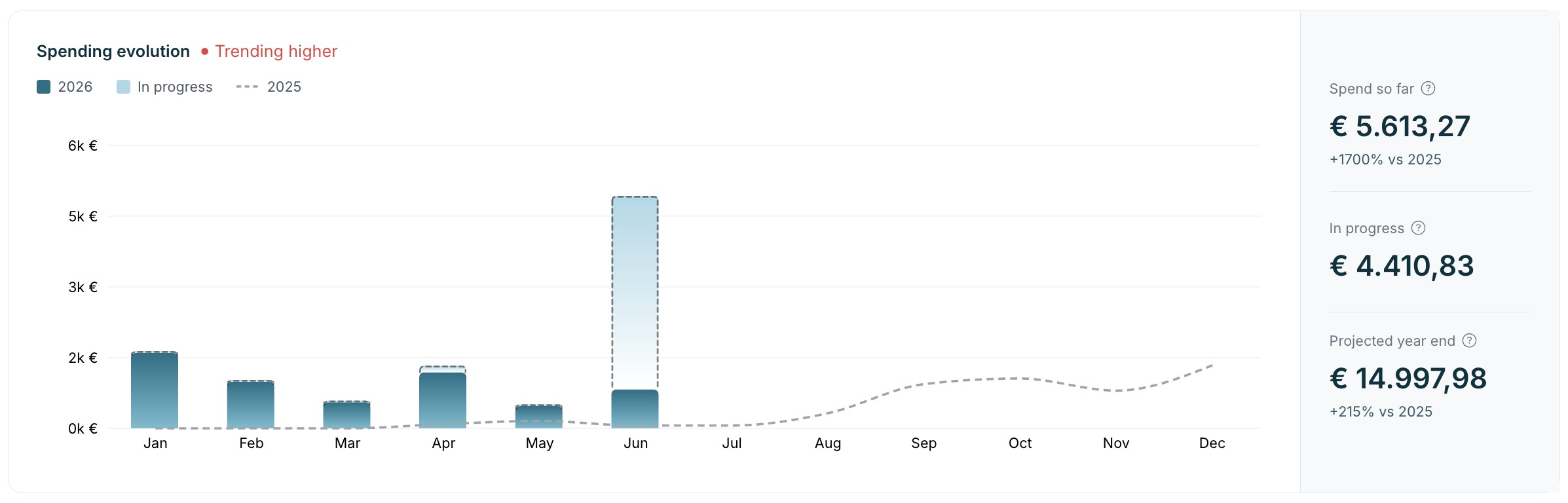
The spending trend chart is a stacked bar chart that shows spend over time with a comparison line overlaid.
-
Bar composition (each bar splits into two parts):
-
Spend so far: expenses in Final Approved, Checked, or Closed status.
-
In progress: all other non-rejected expenses (i.e. not yet final approved).
-
-
X-axis granularity: ‘This Month’ shows one bar per day; ‘This Quarter’ and longer periods show one bar per month.
-
Comparison line: overlays the equivalent values from your selected comparison period, so you can see how current spending tracks against the past.
KPI cards: spend so far, in progress, and projected month-end
Pulse surfaces three KPI cards:
-
Spend so far: the total of expenses that have reached Final Approved, Checked, or Closed status in the selected period. A delta compares this committed spend against the same number of elapsed days in the comparison period.
-
In progress: the total of expenses not yet final approved. This includes expenses in open, submitted, or pending-approval reports, as well as expenses not yet attached to any report. No comparison delta is shown.
-
Projected period end: a forward-looking estimate of total spend for the full period. It combines ‘Spend so far’, ‘In progress’, and an estimate of expenses still to be created. The estimate takes your average daily spend over the last 30 days and multiplies it by the number of remaining days. A delta compares the projection against the actual total spend of the full comparison period.
Leaderboards and expense-type breakdown
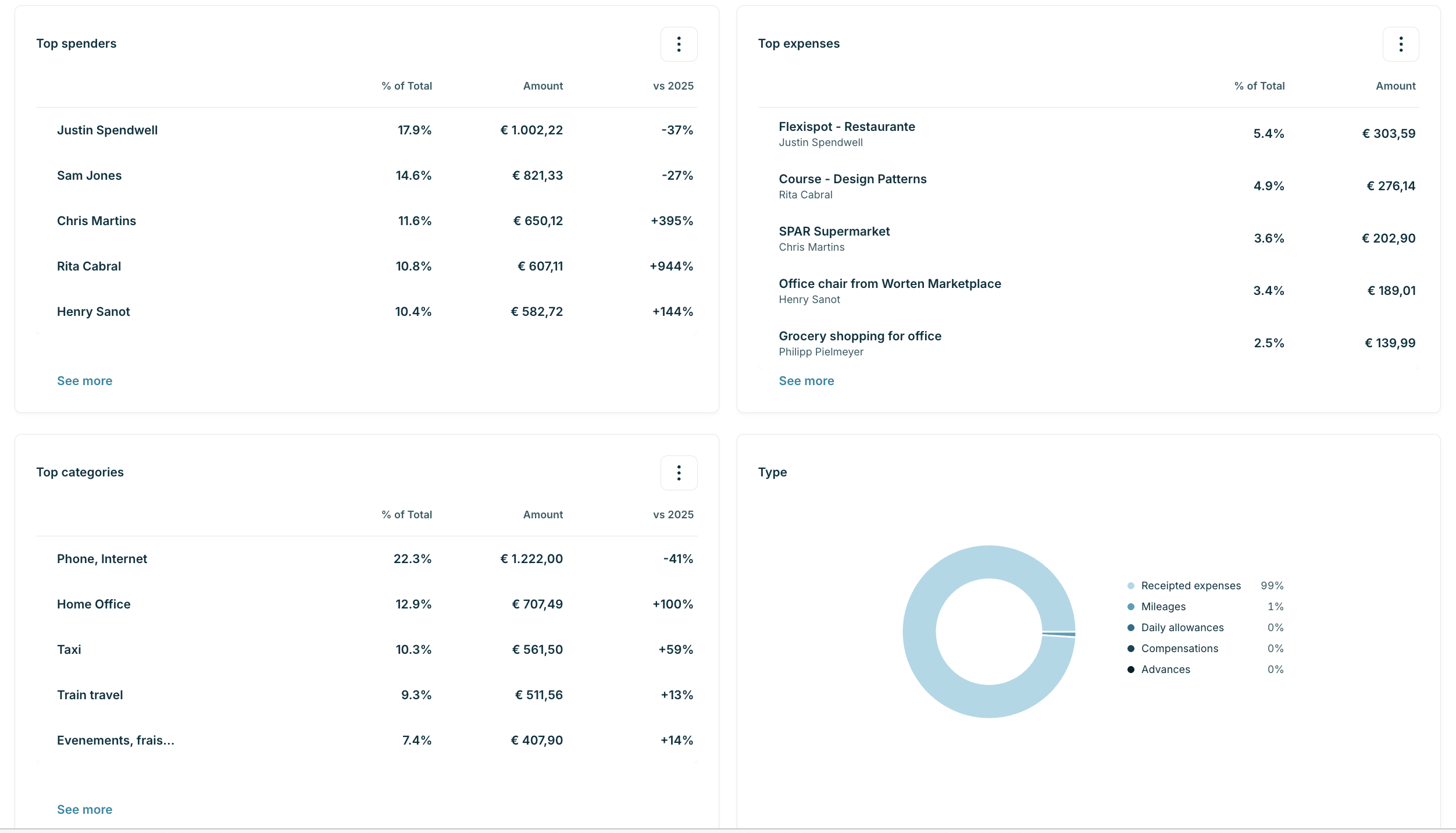
Leaderboards highlight your top spenders (by employee), top categories, and top expenses. Each widget shows the top five by default and expands to reveal more.
A separate pie chart breaks spend down by expense type: receipted expenses, mileages, daily allowances, compensations, and advances.
Workflow tab: find bottlenecks in your expense process
The Workflow tab is a real-time diagnostic of your expense pipeline. It answers how much is stuck in the process? and where are the bottlenecks? by combining live data (always real-time) with period-bound data (filtered by the period selector).
In-progress: see what's stuck in the pipeline (live)
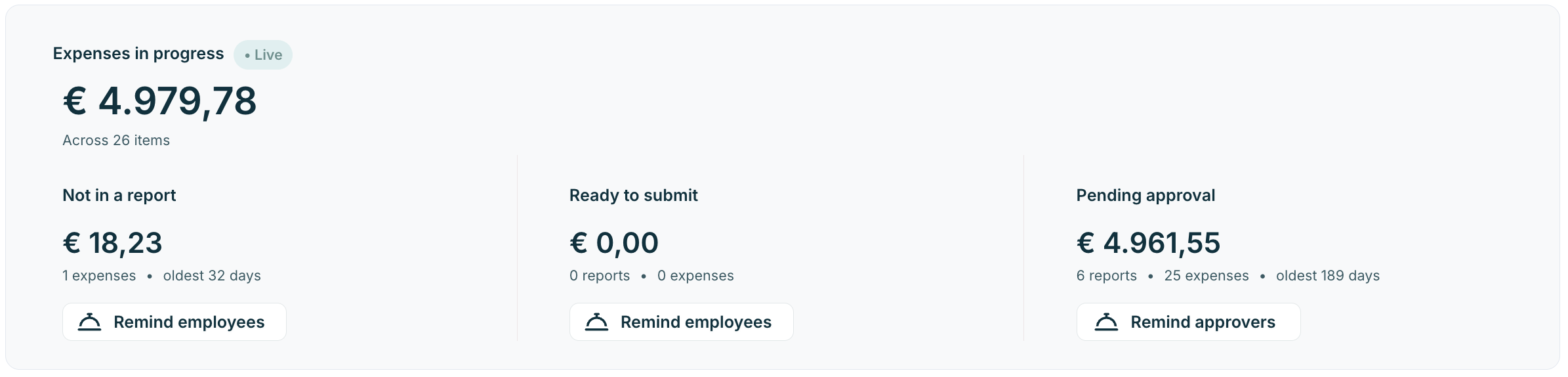
At the top of the tab, the In-progress section shows the total amount of money currently sitting idle in the pipeline, regardless of the selected period.
In progress = all expenses where the report state is not ‘Final Approved’, ‘Checked’, or ‘Closed’ + expenses not yet included in a report.
This breaks down into three stages, each showing the total amount, number of items, and the age of the oldest item. A Live indicator confirms the figures update as soon as expenses change.
|
Stage |
Definition |
What you can do |
|---|---|---|
|
Not in a report |
Expenses not yet attached to any report |
Click Remind employees to ask people to add them to a report |
|
Ready to submit |
Expenses in a report that has been created but not yet submitted |
Click Remind employees to encourage submission |
|
Pending approval |
Expenses in a submitted report that are waiting for final approval |
Click Remind approvers to prompt approvers |
Period metrics: cycle times and out-of-policy expenses
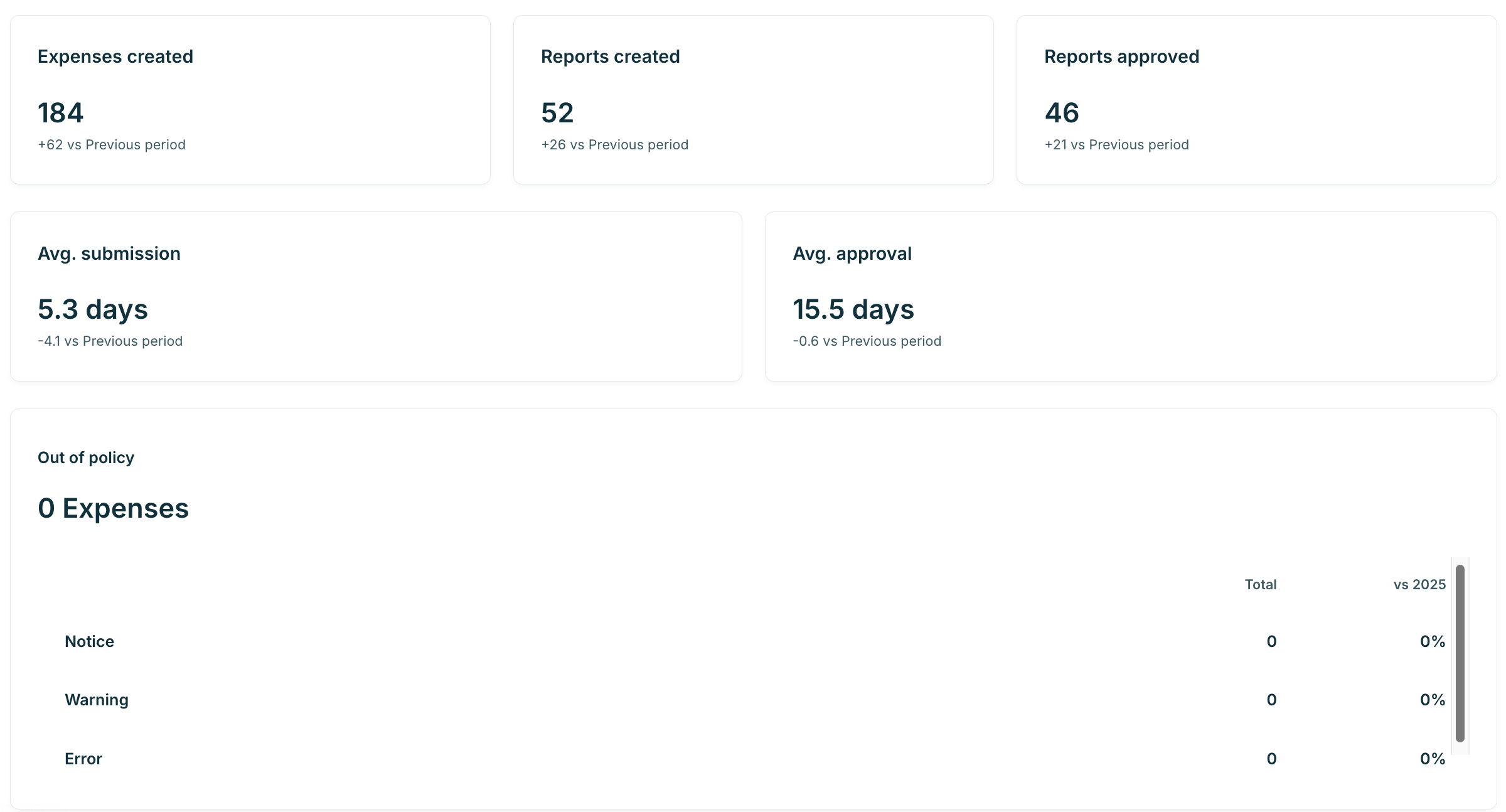
Below the live section, Pulse shows metrics that respect the selected period and its comparison:
-
Expenses created: number created in the timeframe, with a delta vs. the comparison period.
-
Reports created: number of reports created in the timeframe.
-
Reports approved: number of reports that reached final approval.
-
Average submission: average days from expense creation to submission.
-
Average approval: average days from submission to final approval.
An Out of policy table highlights expenses that triggered organisational business rules (notice, warning, or prohibited).
Sending manual reminders to employees and approvers
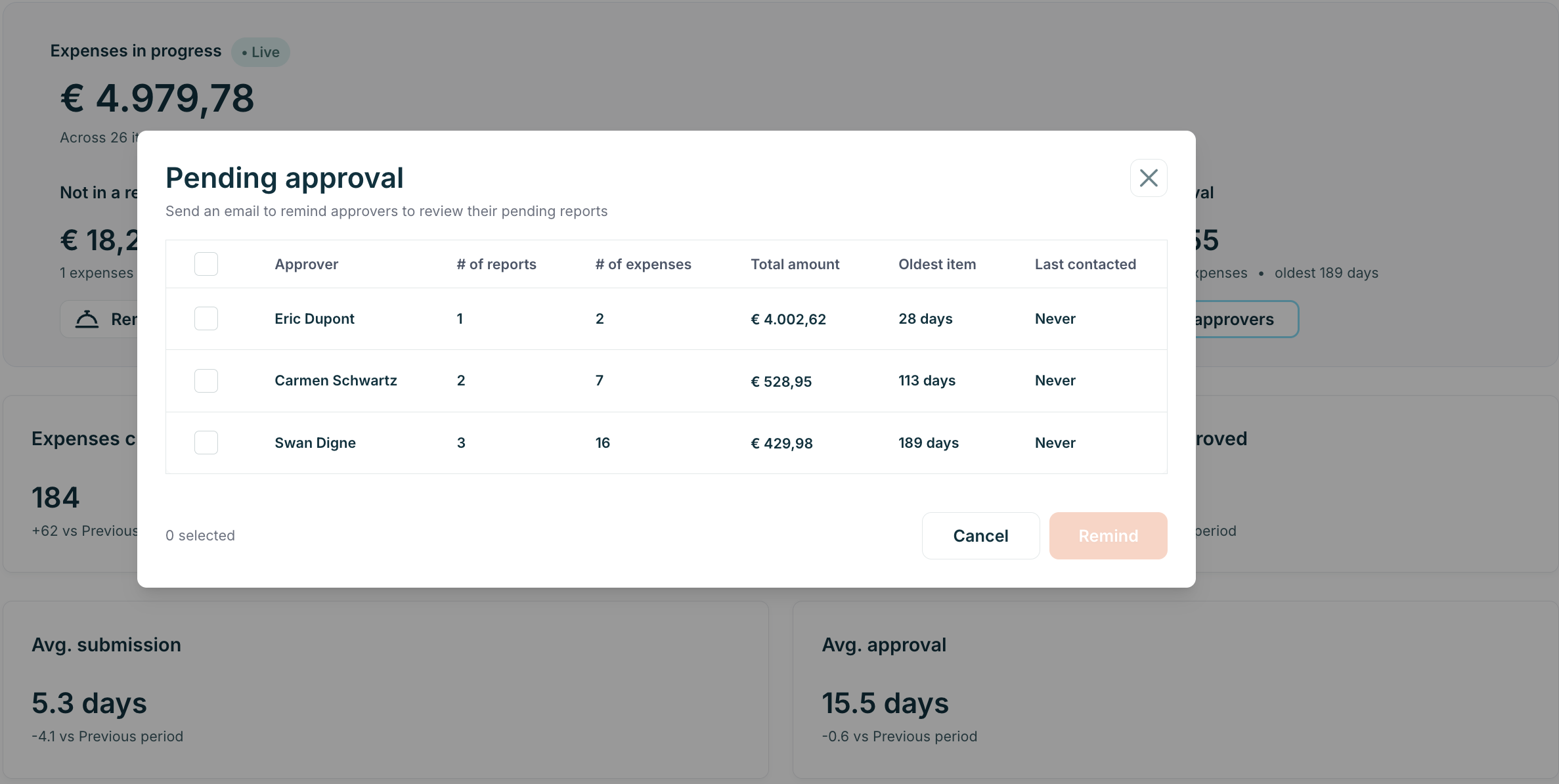
The ‘Manual reminder’ feature lets you send targeted reminders when spend stalls. It complements Declaree's automated nightly reminders.
How to send a manual reminder
-
Choose the stage. On the Workflow tab, click ‘Remind employees’ or ‘Remind approvers’ in the relevant stage (Not in a report, Ready to submit, or Pending approval).
-
Select recipients. A modal opens showing each person with their number of expenses or reports, total amount, and the age of the oldest item. Recipients are unchecked by default, select individuals or use ‘Select all’. A status indicator shows "Reminded X days ago" so you know if someone was contacted recently.
-
Send. Click ‘Remind’. Pulse uses existing email templates and sends both an email and a push notification to anyone using the mobile app.
How manual reminders behave
-
No cooldown against automated reminders. Manual reminders are separate from the nightly automated emails — someone may receive both on the same day.
-
They override opt-outs. If a user has opted out of reminder notifications, manual reminders still go through, because they reflect a deliberate action by the finance manager.
-
24-hour frequency cap per recipient. To prevent accidental spamming, once you send a manual reminder to someone, that row is disabled for them for 24 hours.
Why use Pulse?
With Pulse, you no longer need ad-hoc exports or manual chasing. You can monitor spending in real time, forecast your period-end total, identify your top cost drivers, and detect bottlenecks in the expense process. This allows you to act immediately by sending targeted reminders to employees or approvers. It all happens in one simple, read-only dashboard that gives you visibility and control without the clutter.
Frequently asked questions
What is Pulse in Declaree? Pulse is a read-only dashboard for finance managers and controllers that brings real-time spend data and expense-workflow health into a single view. It's available to Admins and scoped to the organisation you're logged into.
Can I create or edit expenses in Pulse? No. Pulse is read-only. It surfaces insights and lets you send reminders, but you create and modify expenses elsewhere in Declaree.
How does Pulse calculate projected month-end spend? It adds your ‘Spend so far’ and ‘In progress’ totals to an estimate of expenses still to be created. That estimate uses your average daily spend over the last 30 days, multiplied by the number of remaining days in the period.
What counts as "in progress" spend? Any expense not yet final approved, including expenses in open, submitted, or pending-approval reports, and expenses not yet attached to a report.
How do I find bottlenecks in my expense approval process? Open the ‘Workflow’ tab. The live ‘In-progress’ section shows how much is stuck at each stage — ‘Not in a report’, ‘Ready to submit’, and ‘Pending approval’ — with the amount, item count, and age of the oldest item for each.
How do I remind employees about unsubmitted expenses? On the Workflow tab, click Remind employees (or Remind approvers) in the relevant stage, select recipients in the modal, and click Remind. They'll receive an email and a push notification.
Will employees get duplicate reminders? Manual reminders are separate from the automated nightly emails, so a person could receive both in one day. However, there's a 24-hour cap on manual reminders per recipient to avoid spamming.
Can I export data from Pulse? Yes. You can export individual widgets to CSV, or export the full view as a PDF.