
This article is for Declaree admins and card managers who manage company cards. If you’re an employee/cardholder, see Using a Mobilexpense Card (Cardholder).
Card managers can issue cards, review requests, adjust limits, and manage the lifecycle of cards used by employees.
Before you start
-
Confirm that Pliant is connected to the correct Declaree environment. See: Connecting Pliant to Declaree.
-
Confirm that you have the right permissions in Declaree to access card administration features.
Who can manage company cards? Card management in Declaree requires either the Admin role or the Card Manager role. Admins always have full card management rights. The Card Manager role can be granted to any user regardless of their admin status, allowing them to manage company cards without broader admin access. If you don't see the Cards module or card management actions, contact your admin to verify your role.
How do I issue a new Mobilexpense card?
-
In Declaree, open Cards.
-
Click Issue card.
-
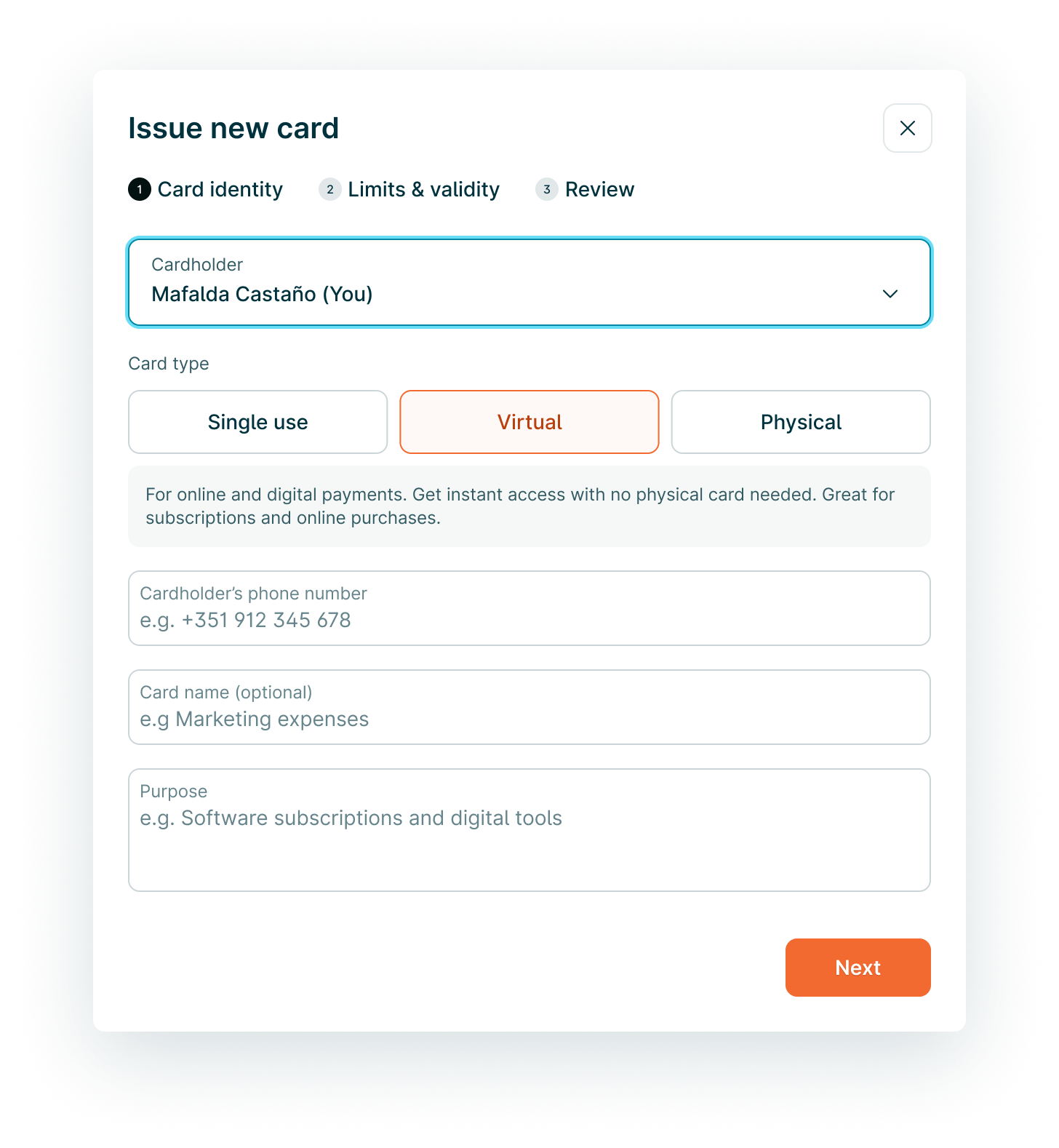
Select the cardholder (employee) and choose the card type (virtual / one-time / physical).
-
If the system lacks the cardholder’s phone number in the settings, you will be asked to enter it here. This is required to activate and use the card.
-
Provide a card name and purpose to help you find and track your cards later.
-
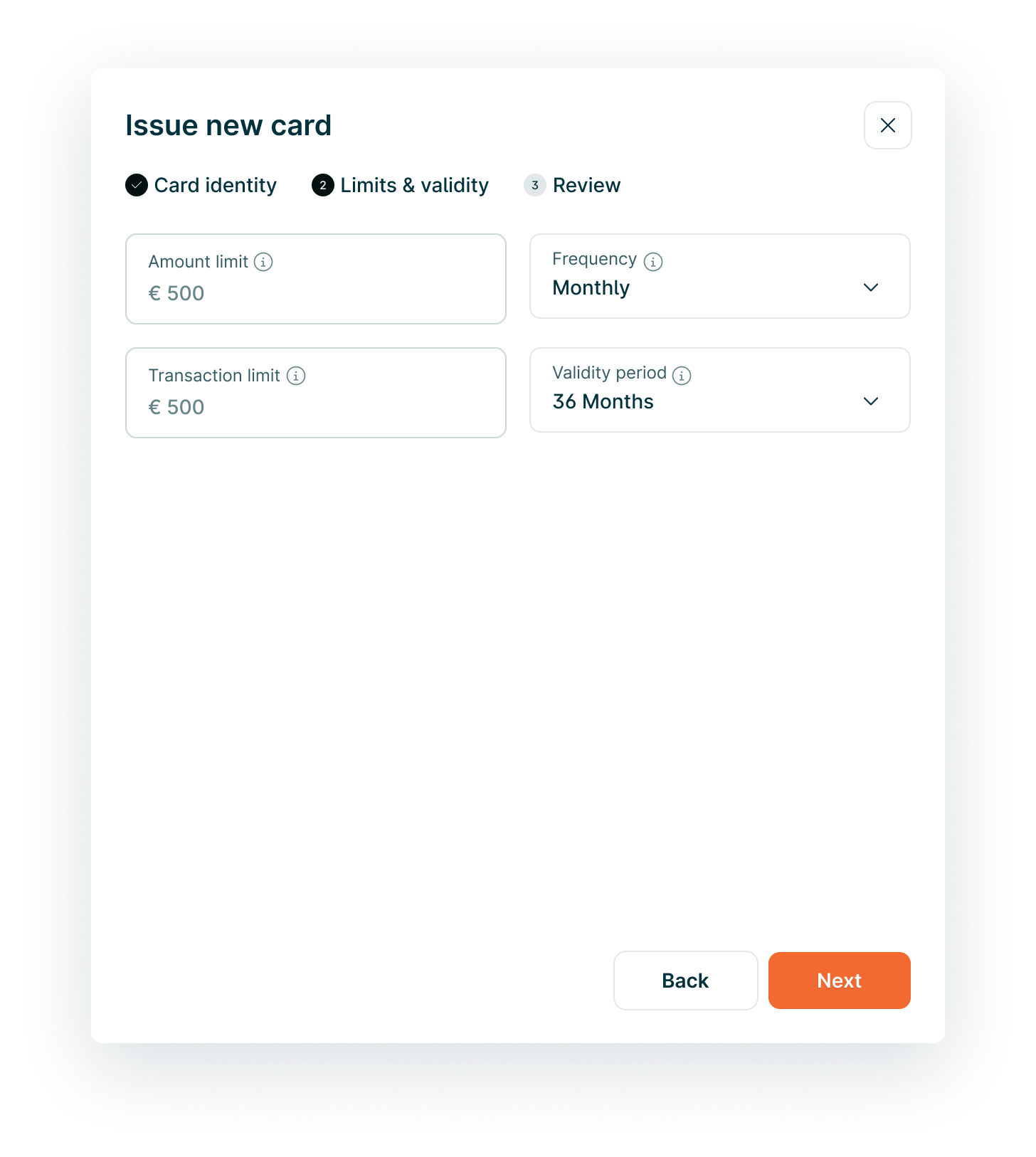
Set initial spending and transaction limits (this can be changed once the card is active) and card validity period.
-
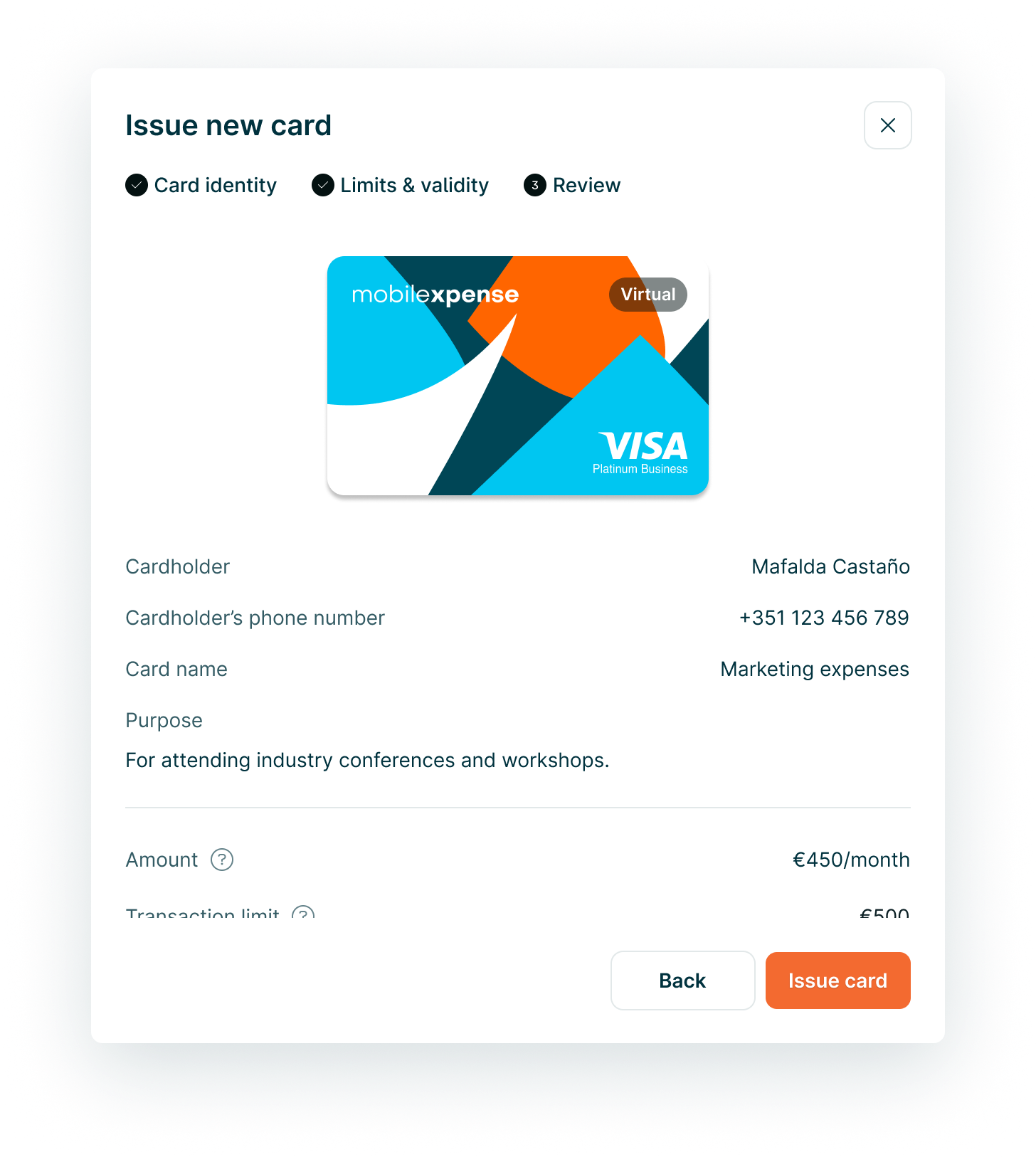
Confirm.
Result: The card becomes available to the employee, and card transactions will sync into Declaree when used.
How do I freeze or unfreeze a card?
Use this when a card is temporarily lost, suspected of misuse, or when an employee leaves temporarily.
-
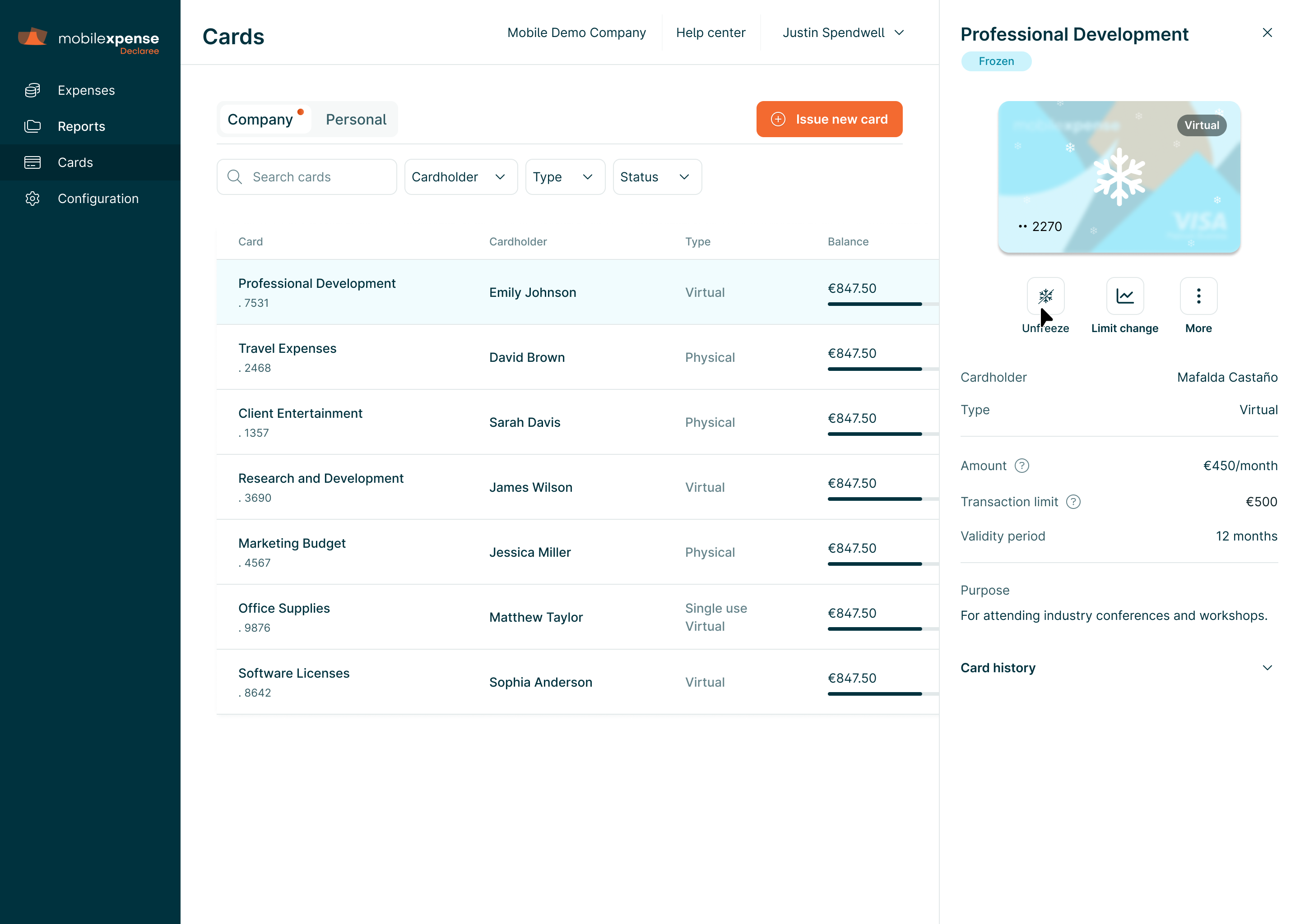
Go to Cards and open the relevant card.
-
Select the card and click Freeze.
-
To reactivate, click Unfreeze.
How do I change a card’s spending limit?
-
Go to Cards and select the card.
-
Click Limit change.
-
Update the amounts and confirm.
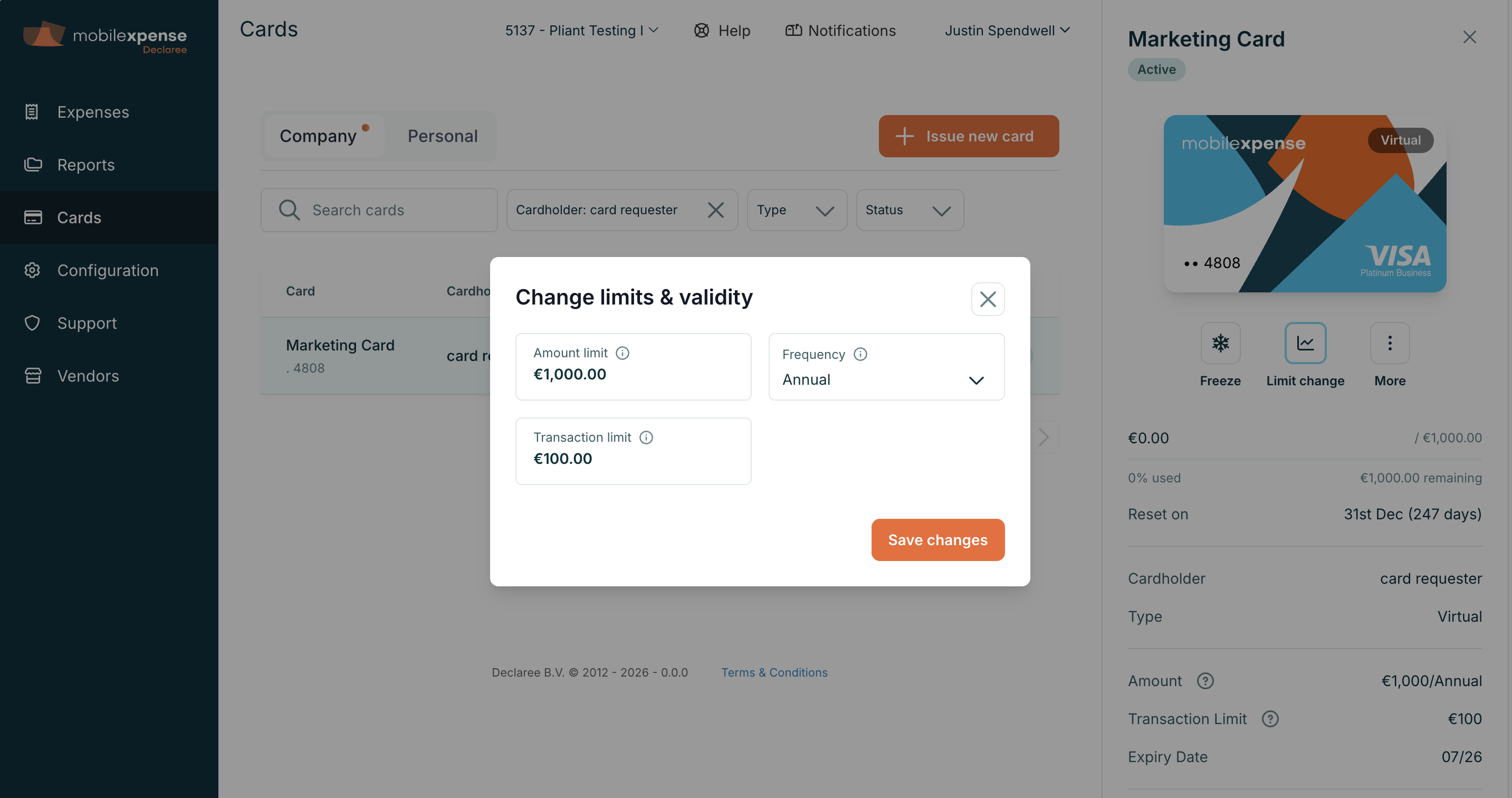
What card lifecycle actions can card managers perform?
Depending on configuration, you may also be able to:
-
Change card name
-
Terminate a card
How do I review Mobilexpense new card requests?
Employees can request a new Mobilexpense card directly from Declaree.
When a request is submitted:
-
The request is sent to all the card managers.
-
The card manager reviews the request.
-
The request can be approved or rejected.
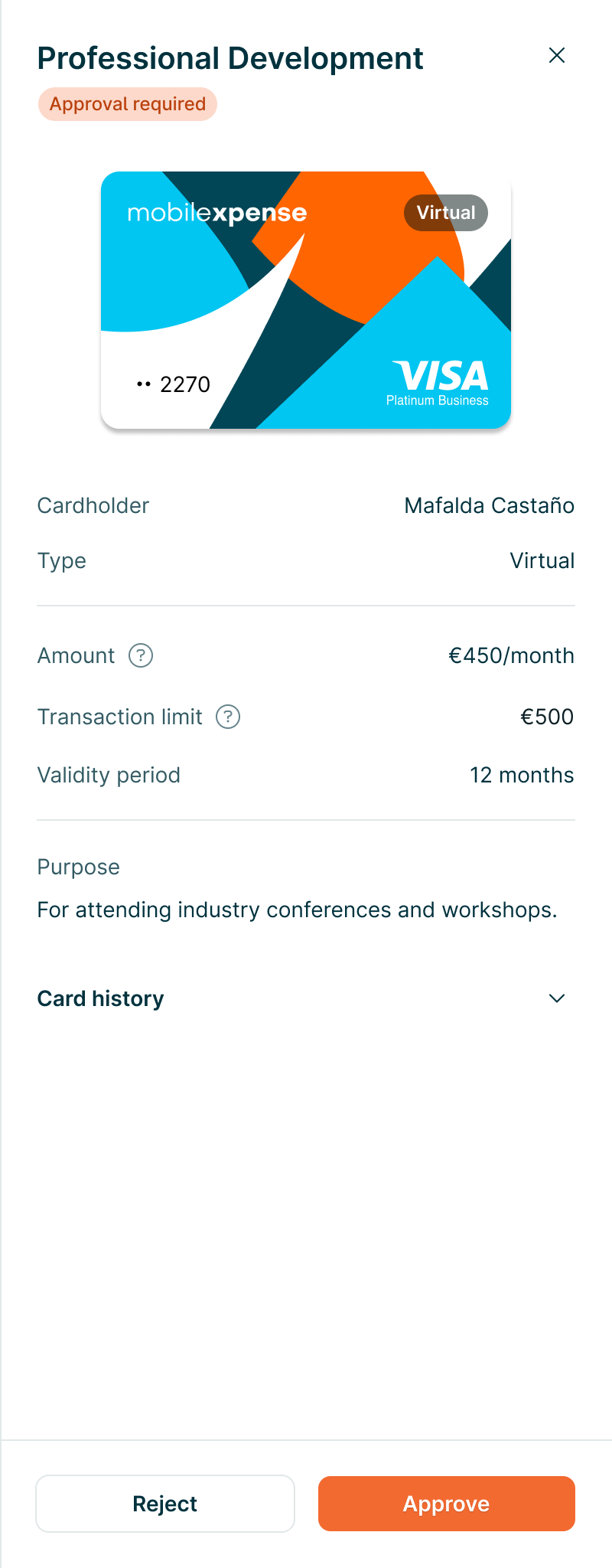
If approved:
-
The card is automatically created through the card provider.
-
The employee receives confirmation.
-
The card appears in Declaree.
If rejected:
-
The employee is notified that the request was declined.
Users can track the status of their request directly in Declaree.
How do I review limit change requests?
Cardholders can request a change to their card spending limit.
The process works similarly to card requests:
-
The cardholder submits a limit change request.
-
The request is routed to the card managers.
-
The admin can approve or reject the request.
If approved:
-
The card limit is updated automatically.
-
The new limit becomes active immediately.
If rejected:
-
The cardholder is notified that the request was declined.
What email notifications do card managers and users receive?
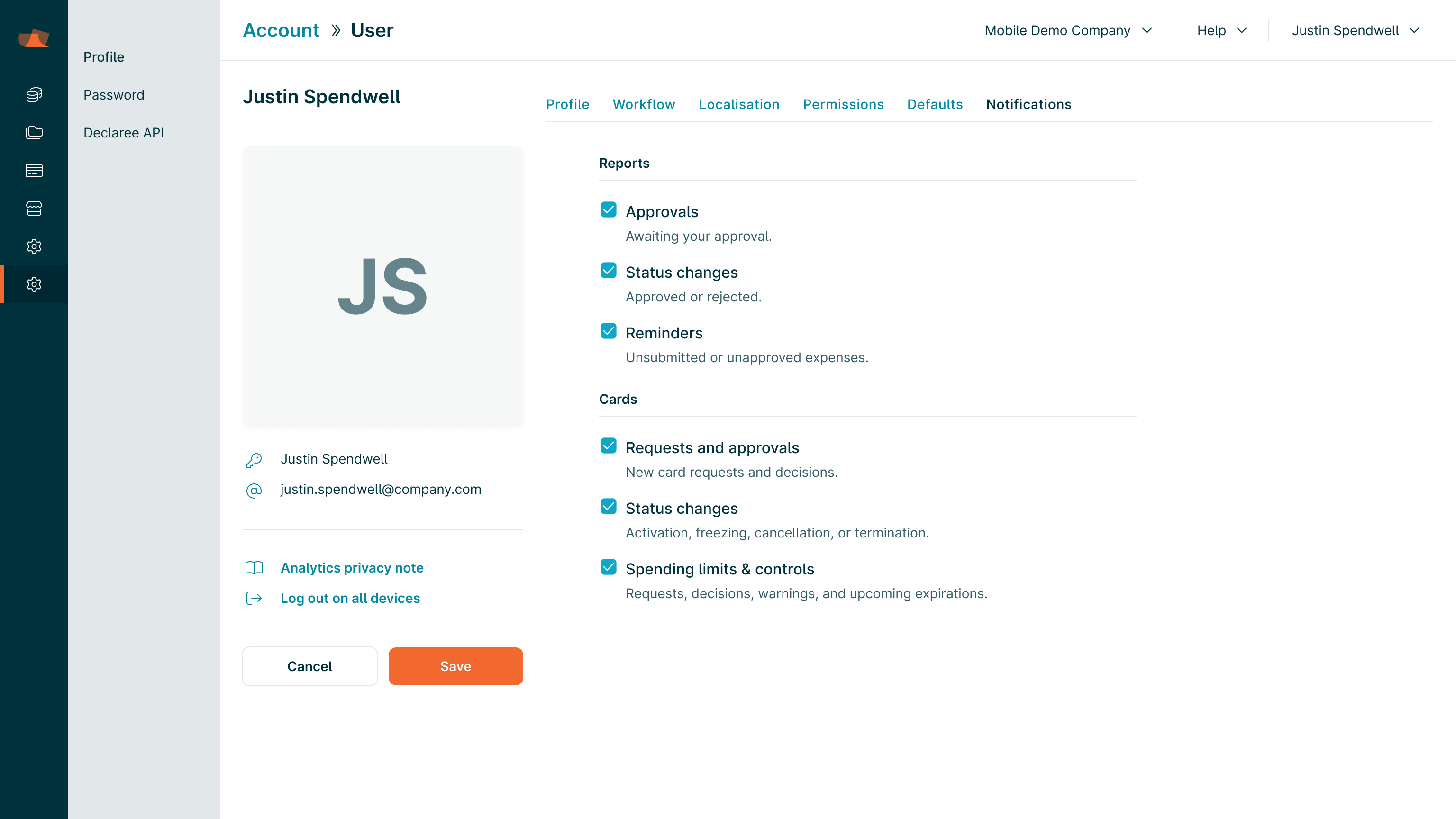
Card Managers and cardholders can receive email notifications related to card activity. Users and Card Managers can opt in or opt out of these notifications in their notification settings.
These notifications include:
|
Notification preference |
What it includes |
|---|---|
|
Requests and approvals |
|
|
Status changes |
|
|
Spending limits & controls |
|
What actions are managed in Pliant instead of Declaree?
While most cardholder actions are available in Declaree, some administrative features are still managed in the Pliant interface.
Examples include:
-
Funding or topping up the card account
-
Creating card accounts or budgets
-
Configuring merchant restrictions
These actions must currently be performed directly in Pliant.
Common admin issues (and how to fix them)
I can’t see the Cards module
-
Confirm the Pliant connection is completed and you are in the correct Declaree environment.
-
Confirm your role includes card administration permissions.
Card transactions are not appearing
-
Mobilexpense Cards: transactions should appear almost instantly in Declaree (usually seconds).
-
If they don’t appear, collect: cardholder name, transaction time/amount/merchant, and contact Support.
Known limitations for Card Manager role
-
Card Manager role is not organization-scoped. The Card Manager role applies at user level across all organizations the user belongs to. It is not possible to grant Card Manager rights in one organization but not another. This mirrors the existing behavior of the Admin role.
-
Role addition is not automatic. If someone is made an Owner in Pliant, an Admin must manually grant them the Card Manager role in Declaree.
-
Role removal is not automatic. If a user's Owner rights are removed in Pliant, their Card Manager role in Declaree is not automatically revoked. An Admin must remove it manually in Declaree.