
This article explains how employees use a Mobilexpense card in Declaree to pay for business expenses.
Mobilexpense cards allow employees to pay for company expenses directly with a company card while keeping expenses automatically synchronized with Declaree.
How do I pay with a Mobilexpense card?
You can use your Mobilexpense card to pay for business expenses such as:
-
Travel expenses
-
Meals
-
Office supplies
-
Other work-related purchases
What happens after I pay with my Mobilexpense card?
After you pay with your card:
-
The transaction automatically appears in Declaree.
-
You receive a notification asking you to complete the expense.
-
You add the receipt and any required details.
This ensures that expenses are recorded correctly and ready for approval.
How do I complete a card expense?
When a card transaction appears in Declaree, you must complete the expense.
To do this, go to “Expenses” (on mobile app or on Web) and:
-
Open the transaction in Declaree.
-
Upload the receipt.
-
Fill in any required information (category, project, description, etc.).
-
Submit the expense.
Once submitted, the expense follows your company’s approval workflow.
How do I request a new Mobilexpense card?
If your company allows it, you can request a Mobilexpense card directly in Declaree.
To request a card:
-
Go to the Cards section.
-
Click Request card.
-
Fill in the requested information.
-
Submit your request.
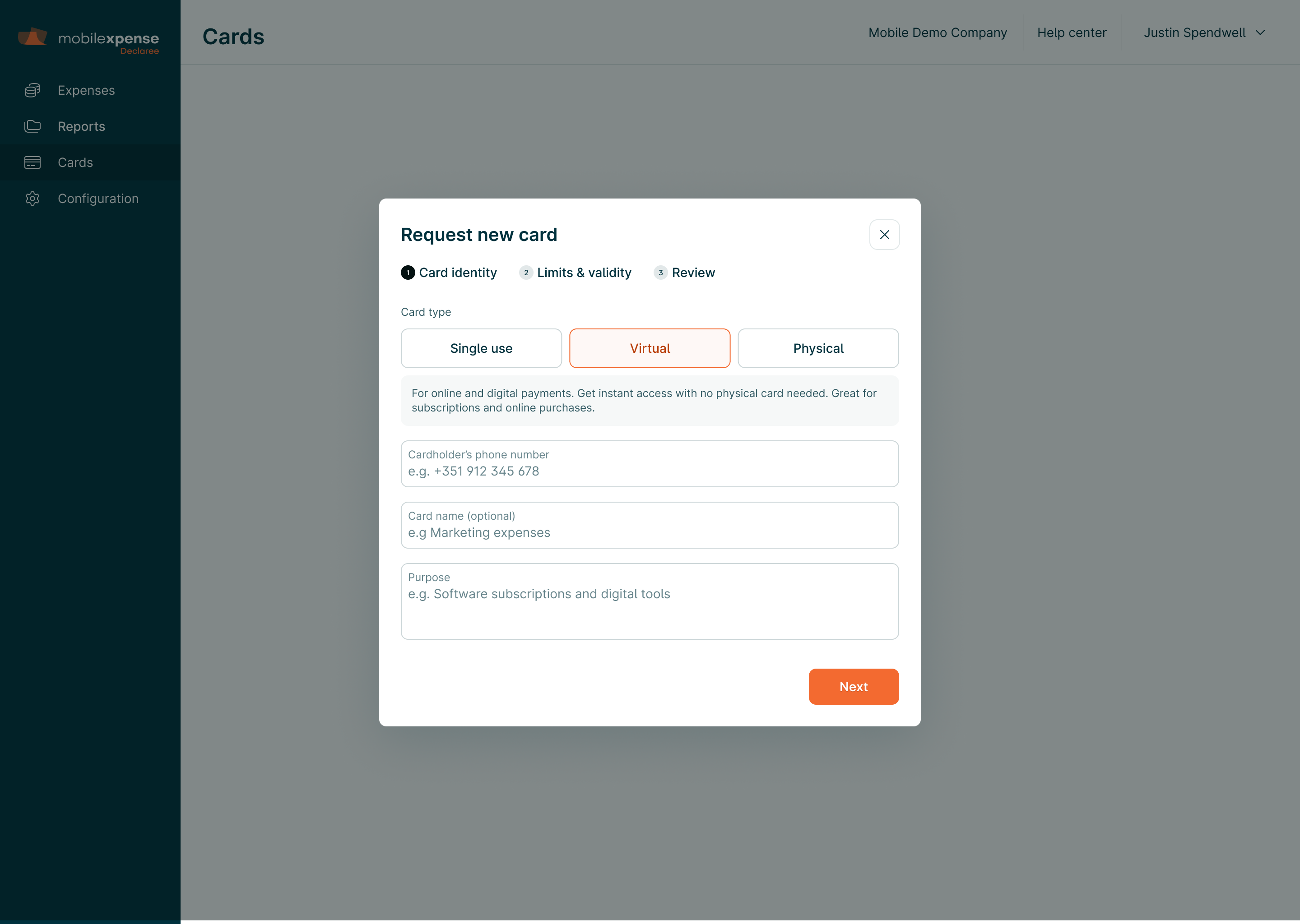
Your request will be sent to the appropriate approver in your company.
If approved:
-
Your card will be issued.
-
You will receive confirmation once the card is ready.
If rejected:
-
You will receive a notification.
If needed, you can also cancel the request at any time.
How do I activate a physical Mobilexpense card?
Note: This activation process only applies to physical Mobilexpense cards.
Virtual cards and single-use cards are automatically activated and can be used immediately after they are issued. No activation is required.
When your company issues you a physical Mobilexpense card, you will need to activate it before using it.
Step 1 — Receive the activation email
Once your card has been issued and delivered, you will receive an email inviting you to activate your card. Click the activation link in the email. This will open the Cards section in Declaree.
Step 2 — Activate the card
In the Cards section, your new card will appear with the status Activation required.
Click Activate card.
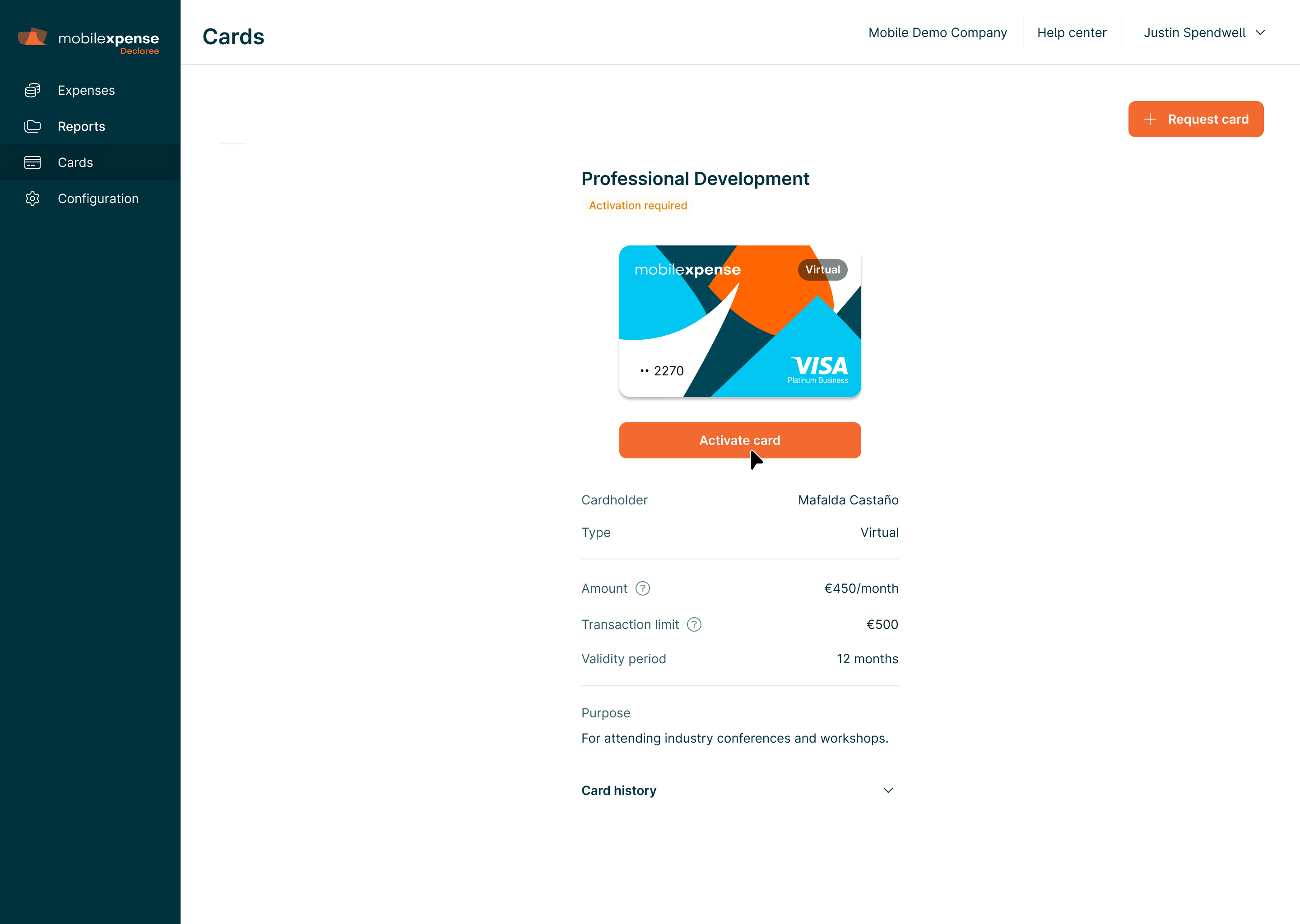
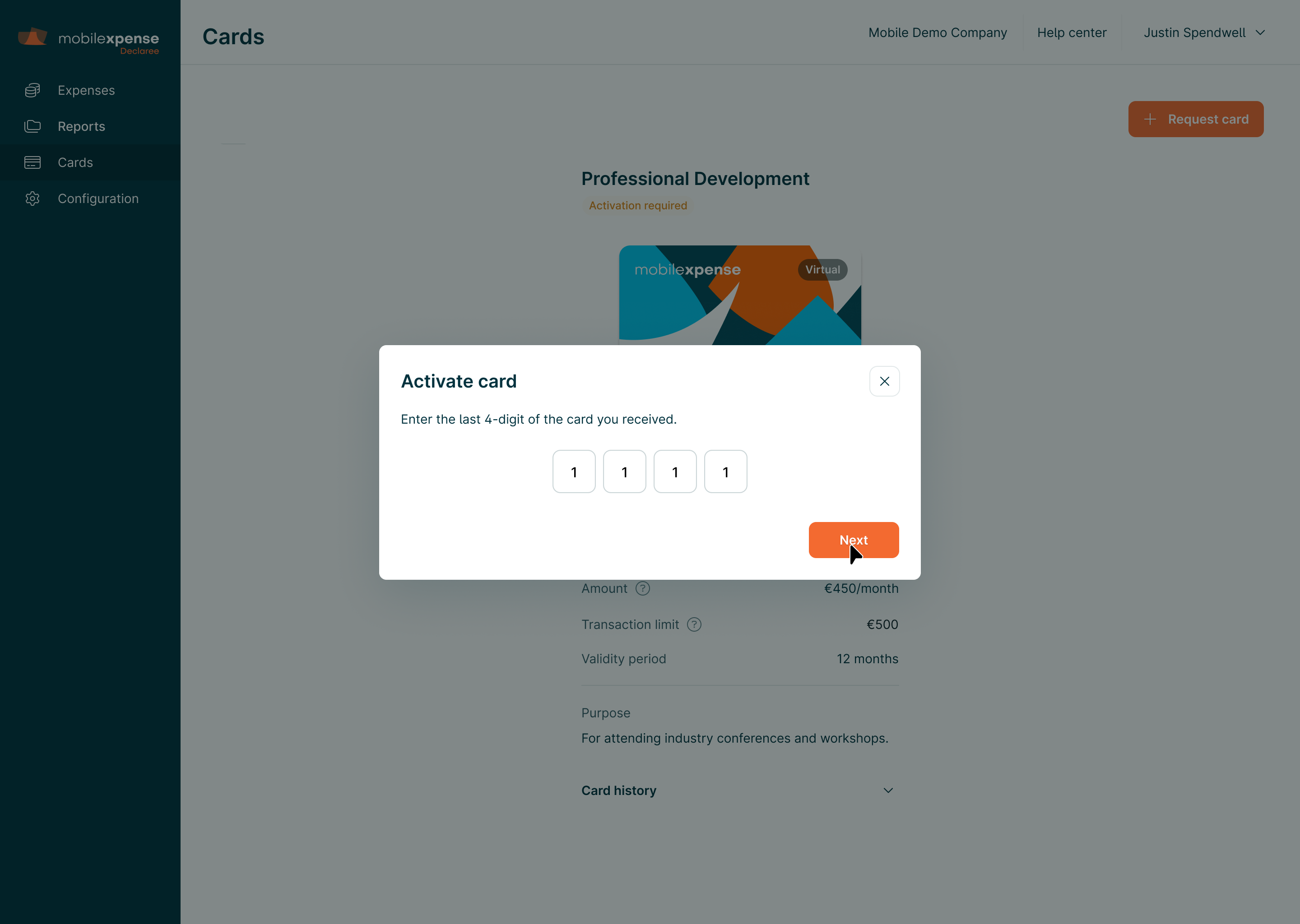
Step 3 — Confirm the card number
To activate the card, you will be asked to enter the last 4 digits of the card number printed on your physical card.
This step ensures that the card has been received by the correct person.
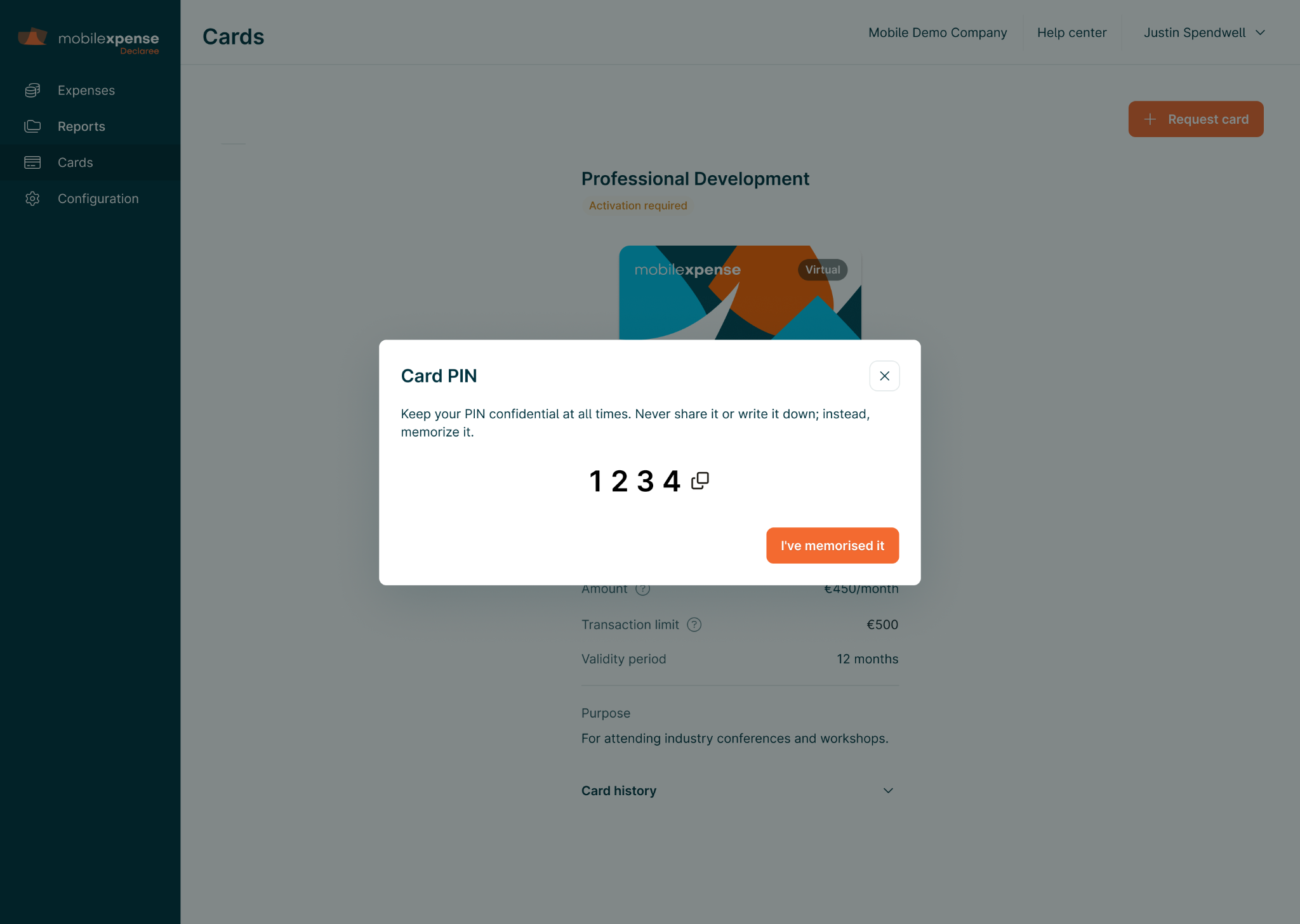
Step 4 — View your card PIN
Once the card has been activated, your PIN code will be displayed.
Important:
-
Memorize your PIN.
-
Do not share it with anyone.
-
Do not store it in an insecure location.
After confirming that you have memorized it, the card is ready to use.
What should i know about my card PIN?
-
The PIN is displayed only once during activation.
-
If you forget your PIN, contact your company administrator.
-
Your card can now be used for business expenses.
How do I request a card limit change?
If you need a higher spending limit, you can request a limit change.
To do this:
-
Open your card in the Cards section.
-
Click Limit change.
-
Enter the new requested limits.
-
Submit the request.
Your manager or administrator will review the request.
If approved, the new limit will be applied to your card.
What type of email notifications may I receive?
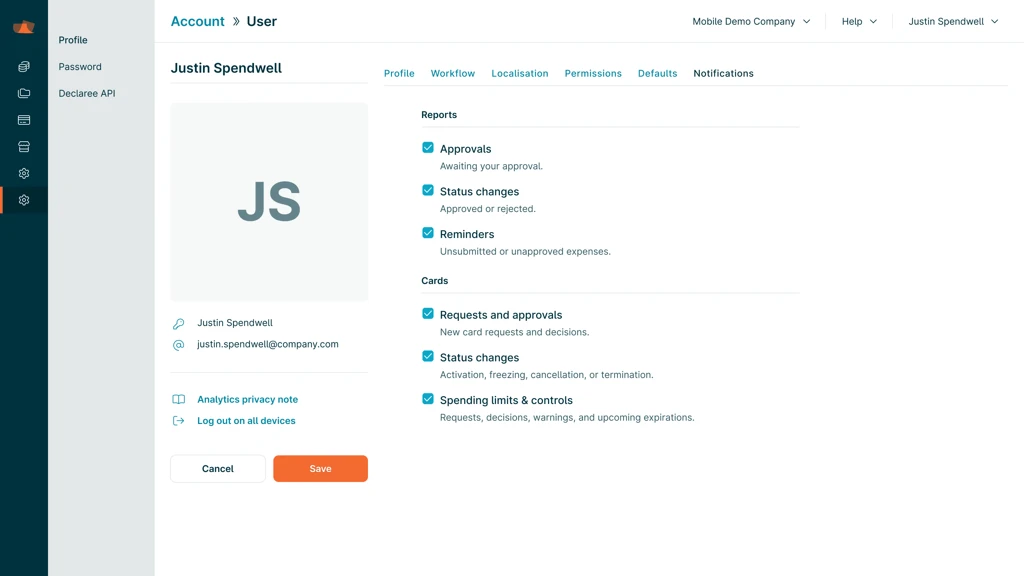
You may receive email notifications related to your Mobilexpense card. You can opt in or opt out of these notifications in your notification settings.
These notifications include:
|
Notification preference |
What it includes |
|---|---|
|
Requests and approvals |
|
|
Status changes |
|
|
Spending limits & controls |
|
You can manage these notifications in your notification settings.
Managing your card
Depending on your company’s configuration, you may be able to:
-
View your card details
-
Freeze your card if it is lost
-
Request card termination
-
Change your card name in Declaree