
Once you’re fully onboarded in both Pliant and Declaree, you can connect the two platforms by following these steps.
Step 1 – enable the integration in pliant
-
Log in to your Pliant account as an administrator.
-
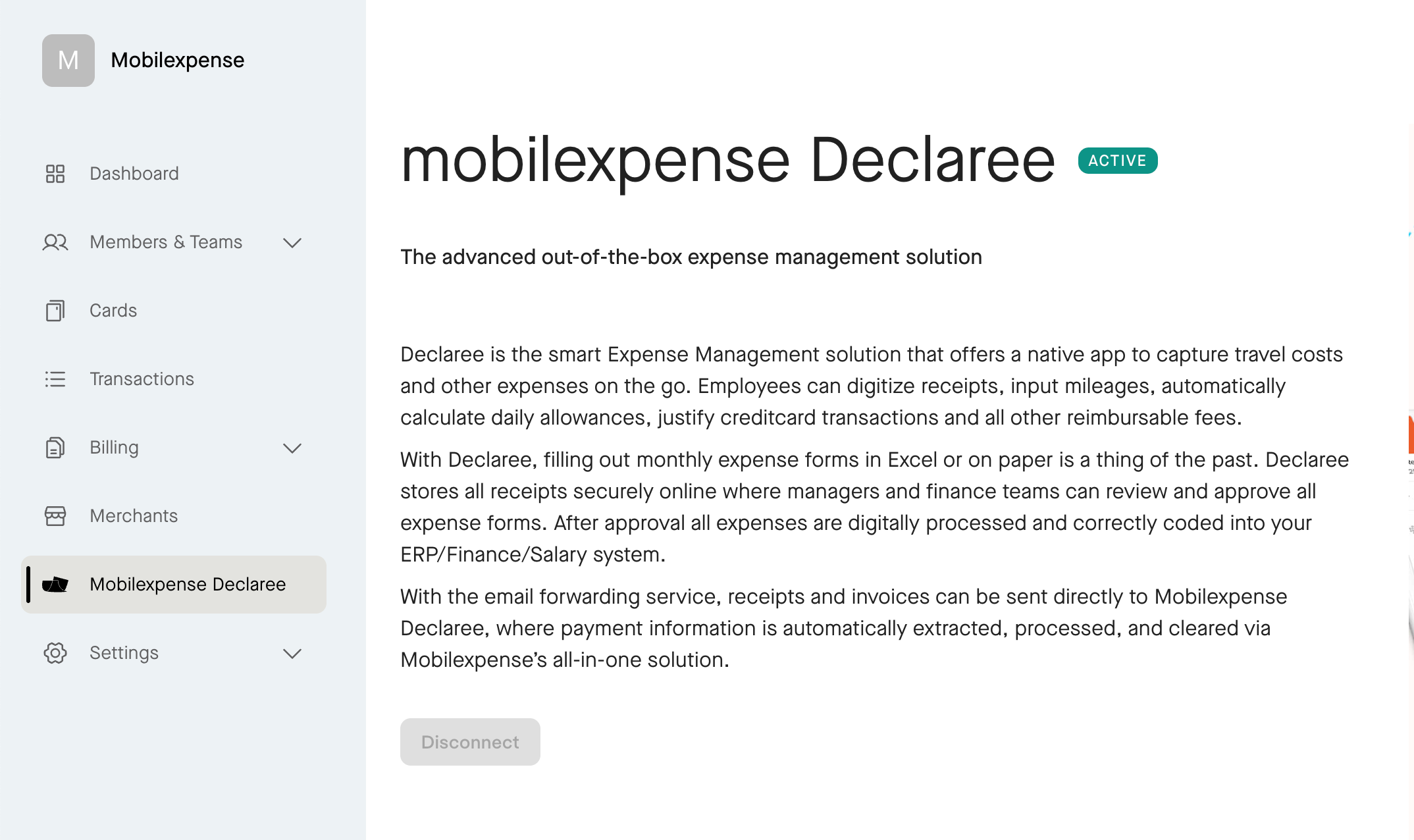
Find Mobilexpense Declaree in the left menu and click connect
-
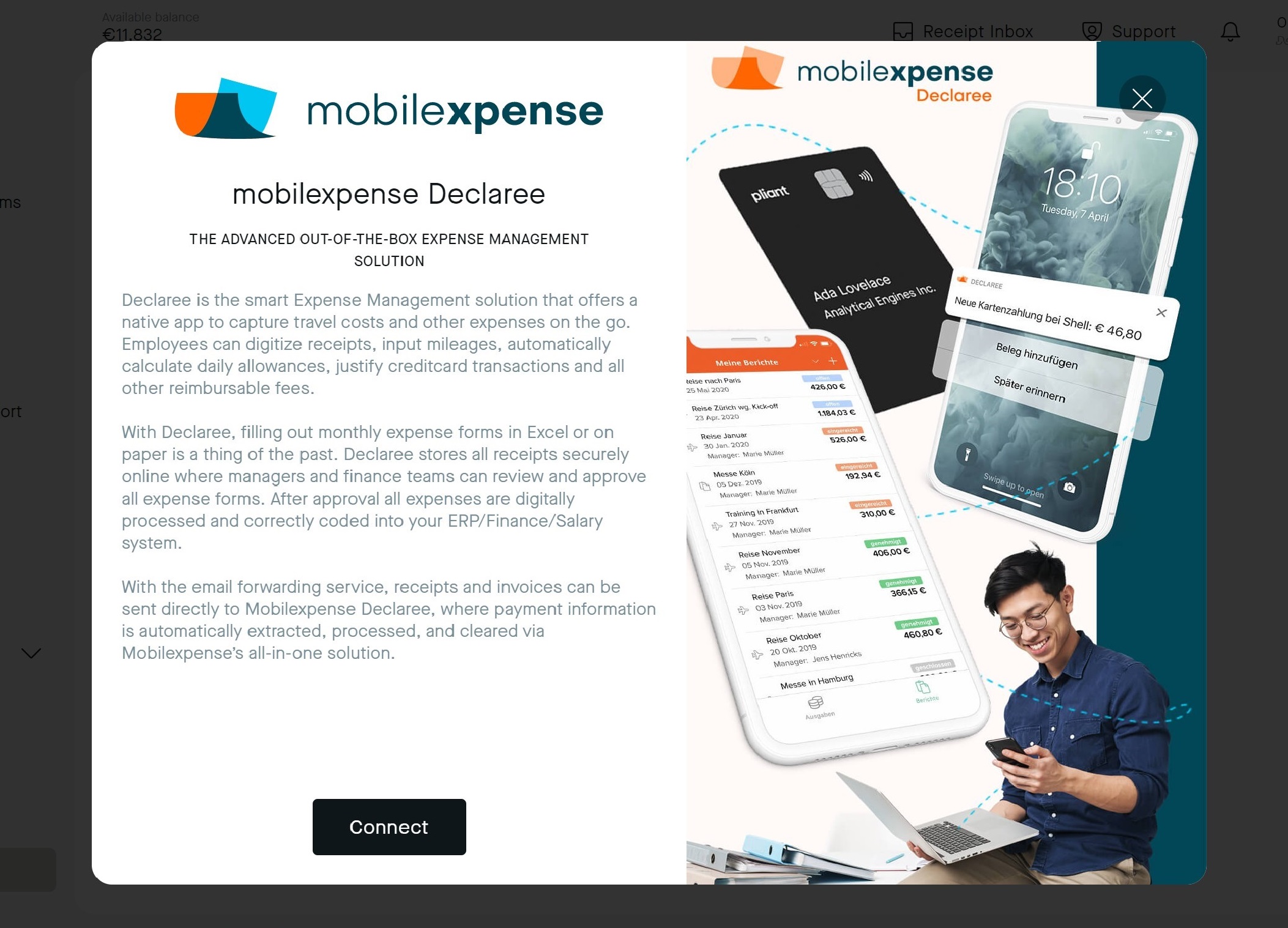
In the pop-up window, click Connect.
-
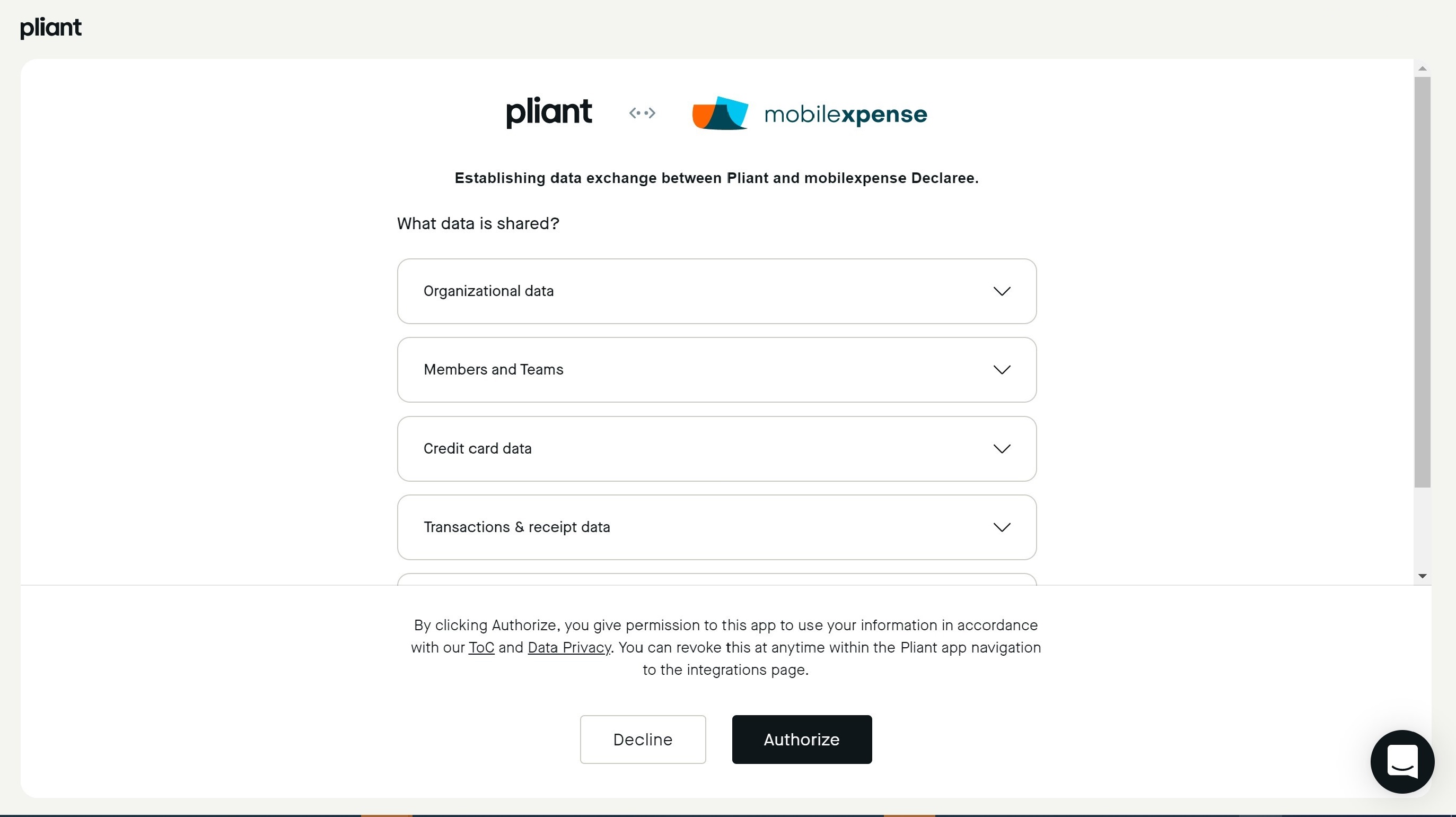
Confirm and authorize the data exchange between Pliant and Declaree.
Step 2 – log in to declaree
-
You’ll be redirected to Declaree.
-
Log in with your Declaree administrator account (if you’re not already logged in).
-
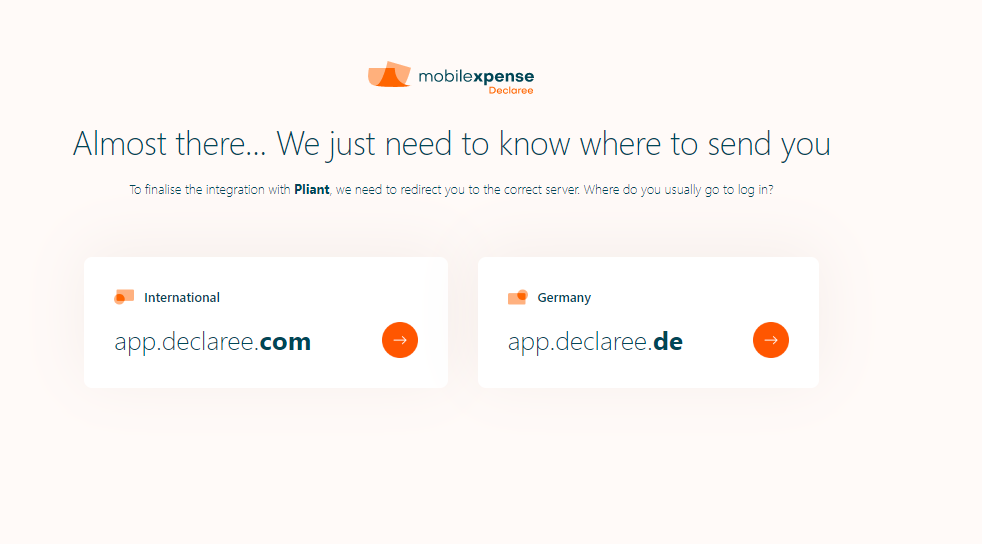
Select your Declaree environment – declaree.com or declaree.de.
-
If you manage multiple Declaree instances, choose the one you want to connect to Pliant.
-
Click OK to finalize the connection.
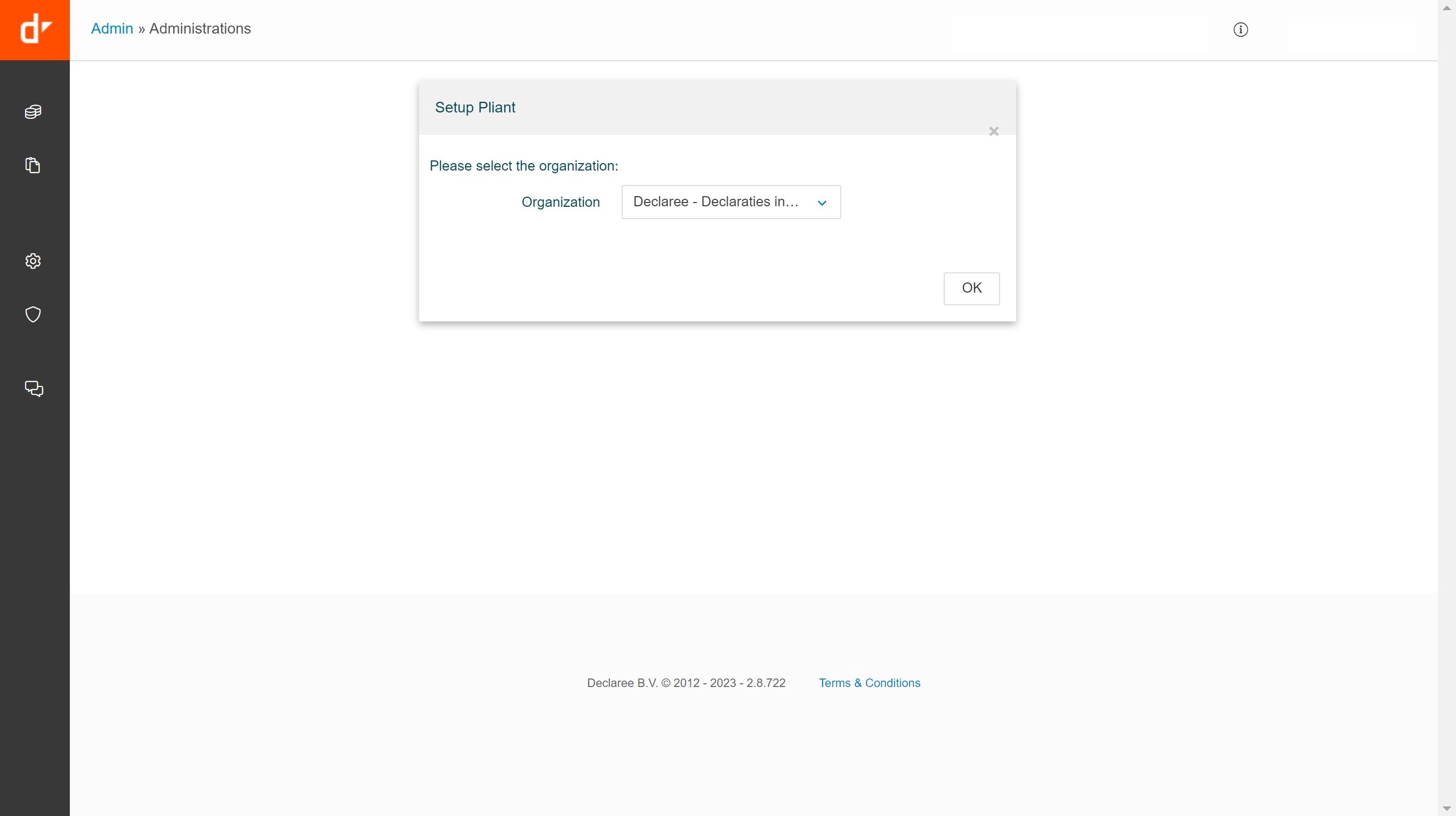
That’s it! Your Pliant and Declaree environments are now connected.
You’re now ready to start using Mobilexpense cards in Declaree.
Want to know how to request a card, assign it to a user, and manage transactions?